Clean Up Your Blogger Template: Remove Unused Widgets in One Click.

Blogger is one of the most popular blogging platforms that allows you to create and manage your own blog. One of the great features of Blogger is the ability to customize your blog's design using widgets. However, over time, you may find that you have accumulated a large number of unused widgets in your Blogger template, which can slow down your blog's loading time and clutter up your design. In this article, we will show you how to remove unused widgets in your Blogger template in just one click.

Clean Up Your Blogger Template: Remove Unused Widgets in One Click.

Why Unused Widgets Still Appear in Your Blogger Template Even After Changing to a New One:

If you have recently changed your Blogger template, you may still notice unused widgets from your previous template appearing on your blog. This happens because when you switch to a new template, the unused widget codes from your old template are not automatically removed. These unused widgets can slow down your blog's loading times and may also clutter up your design. Therefore, it's important to manually remove any unused widgets from your template after switching to a new one. By doing so, you can ensure that your blog is running at optimal speed and that your design looks as clean and streamlined as possible.

How to remove unused widget or reset Template

If you want to remove unused widgets from your Blogger template or reset it completely, there are a few simple steps you can follow.

  • Go to your Blogger dashboard and navigate to the "Theme" section.
  • Click on "Backup" at the top right corner of the page and download a backup of your current template if there are important settings that you want to keep.
  • Clean Up Your Blogger Template: Remove Unused Widgets in One Click.
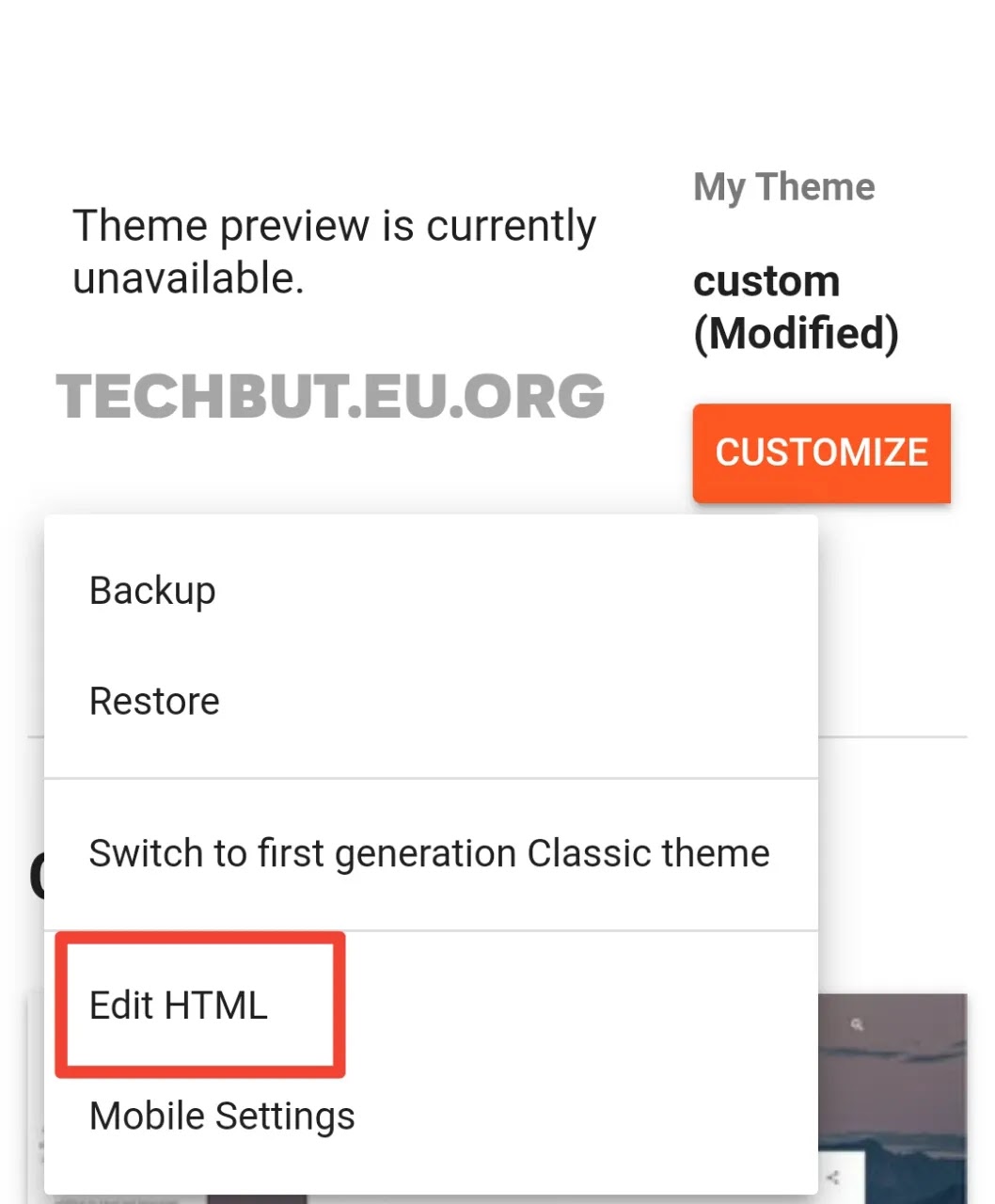
  • Click on "Edit HTML" to access your template's code.
  • Clean Up Your Blogger Template: Remove Unused Widgets in One Click.
  • Select all of the code in the editor and delete it.
  • Clean Up Your Blogger Template: Remove Unused Widgets in One Click.
  • Paste the following code into the editor:
    
    <?xml version="1.0" encoding="UTF-8"?>
    <!DOCTYPE html>
    <html>
        <head>
            <b:skin><![CDATA[]]></b:skin>
        </head>
        <body>
            <b:section id='1'/>
        </body>
    </html>
    This code will create a new, blank template with only a single widget section.
<?xml version="1.0" encoding="UTF-8"?>
<!DOCTYPE html>
<html>
    <head>
        <b:skin><![CDATA[]]></b:skin>
    </head>
    <body>
        <b:section id='1'/>
    </body>
</html>
  • Save your changes by clicking on the "Save Theme" button located at the top of the editor.
  • Clean Up Your Blogger Template: Remove Unused Widgets in One Click.

For Mobile User:

If you're using the mobile version of Blogger on an Android phone, you may have noticed that it can be difficult to select all text. However, there is a solution:

  • Open "desktop mode" in your browser settings
  • Long press on the text and see if the "paste" option appears.
  • If you are using Gboard, look for the "Text Editing" button within the keyboard, which allows you to select all the text.
  • Clean Up Your Blogger Template: Remove Unused Widgets in One Click.
  • Now long press on "Select all" option.
  • Clean Up Your Blogger Template: Remove Unused Widgets in One Click.
  • If you notice that the template code has been selected, proceed to long-press the clear button.
  • Clean Up Your Blogger Template: Remove Unused Widgets in One Click.
  • If you can't see "Text Editing" button in Gboard then click on three dots button see picture below:
  • Clean Up Your Blogger Template: Remove Unused Widgets in One Click.
  • After clearing the old template code, follow the same steps as explained above.

Congratulations! You have successfully cleared or reset your Blogger template. Now, go back to the "Theme" section and upload a new template that you want to apply. Note: If you have important settings in your backup template, you cannot upload it. In that case, you need to upload it to another blog and copy-paste the settings. I hope you are feeling good.

Last Words:

In this article, we have explained how to remove unused widgets in the Blogger template and reset the Blogger template. We hope this information was helpful to you. If you have any questions or concerns, please feel free to drop them in the comments section below.

Popular posts from this blog

Tạo mục lục

Bài viết này mình hướng dẫn cách Tạo mục lục bài viết tự động cho blogspot, Table of Contents cho blogspot với nhiều cấp tự động nhận thẻ H2, H3, H4 làm mục lục của bài viết. Tạo Mục Lục Bài Viết Tự Động Cho Blogger Mục lục bài viết Mục lục bài viết blogspot là gì? Cách cài đặt mục lục bài viết cho blogspot. Bước 1: Thêm CSS Bước 2: Thêm JS Bước 3 : Viết bài Bước 4: Xuất mục lục lên bài viết Kết luận về cách tạo mục lục tự động cho blogger Mục lục bài viết blogspot là gì? Mục lục trong bài viết sẽ giúp người đọc dễ dàng di chuyển đến phần họ muốn mà không cần phải kéo chuột quá lâu. Đồng thời, nó như một bảng sắp xếp nội dung của bạn được ngăn nắp và dễ hiểu hơn. Chẳng hạn, với một bài viết có nội dung khá dài như thế này nếu không có mục lục rất khó để giữ chân khách hàng lâu hơn. Cách cài đặt mục lục bài viết cho blogspot. Bước 1: Thêm CSS - Đăng nhập vào Blogger, vào phần chủ đề và chọn chức năng Tùy chỉnh chủ đề. - Các bạn copy CSS bên dưới dán trước thẻ đóng </b:skin> và l...

Tìm hiểu về Vòng lặp Data Label của Blogger

Vòng lặp Label giúp chúng ta lấy tất cả danh sách label hiển thị ra ngoài và chúng ta có thể tùy biến được nhiều kiểu hiển thị khác nhau, cùng mình tìm hiểu bên dưới như sau: 1. Load tất cả các label Đây chính là vòng lặp để lấy tất cả các label ra ngoài <b:loop index='i' values='data:post.labels' var='label'>     <a expr:href='data:label.url' rel='tag'>         <data:label.name />     </a> </b:loop> 2. Chỉ lấy label đầu tiên  - Cách 1 : <b:if cond='data:post.labels'>     <a expr:href='data:post.labels.first.url'>         <data:post.labels.first.name />     </a> </b:if> - Cách 2 : Dùng vòng lặp chỉ xuất ra label đầu tiên <b:loop values='data:post.labels' index='i' var='label'>     <b:if cond='data:i == 0'>         <a expr:href='data:label.url' rel='tag'>         ...

Trung tâm Cấp cứu 115 TP. Hồ Chí Minh tuyển dụng nhân sự năm 2022

  Căn cứ Kế hoạch số: 372/KH-TTCC115 ngày 08/7/2022 của Trung tâm Cấp cứu 115 TP. Hồ Chí Minh về việc tuyển dụng lao động hợp đồng theo Nghị quyết 102/NQ-CP của Chính phủ năm 2022; Trung tâm Cấp cứu 115 TP. Hồ Chí Minh thông báo tuyển dụng như sau: 1. Vị trí tuyển dụng, số lượng và yêu cầu: TT Vị trí việc làm Khoa Phòng Số lượng cần tuyển Yêu cầu chung 1 Bác sĩ Điều hành 36 – Tốt nghiệp bác sĩ trở lên hoặc nhóm ngành Y học (trừ ngành Y học dự phòng); * Ưu tiên có Chứng chỉ hành nghề 2 Điều dưỡng kíp cấp cứu ngoài bệnh viện Điều hành 61 – Tốt nghiệp ngành Điều dưỡng Cao đẳng trở lên; * Ưu tiên Điều dưỡng trình độ Đại học. * Ưu tiên có Chứng chỉ hành nghề 3 Điều dưỡng tiếp nhận và điều hành cấp cứu Điều hành 24 – Tốt nghiệp ngành Điều dưỡng Cao đẳng trở lên; * Ưu tiên Điều dưỡng trình độ Đại học. * Ưu tiên có Chứng chỉ hành nghề 4 Điều dưỡng hành chính Điều hành 8 – Tốt nghiệp ngành Điều dưỡng Cao đẳng trở lên; * Ưu tiên Điều dưỡng trìn...